
Workspace
How to Set Up a Workspace That Helps You Focus
A good workspace doesn't need expensive furniture or a picture-perfect desk. Learn how to arrange your desk, monitor, chair, lighting, and surroundings to make focused work easier.
By Ronald Dadivas · Published 5 September 2026 · Updated 30 September 2026
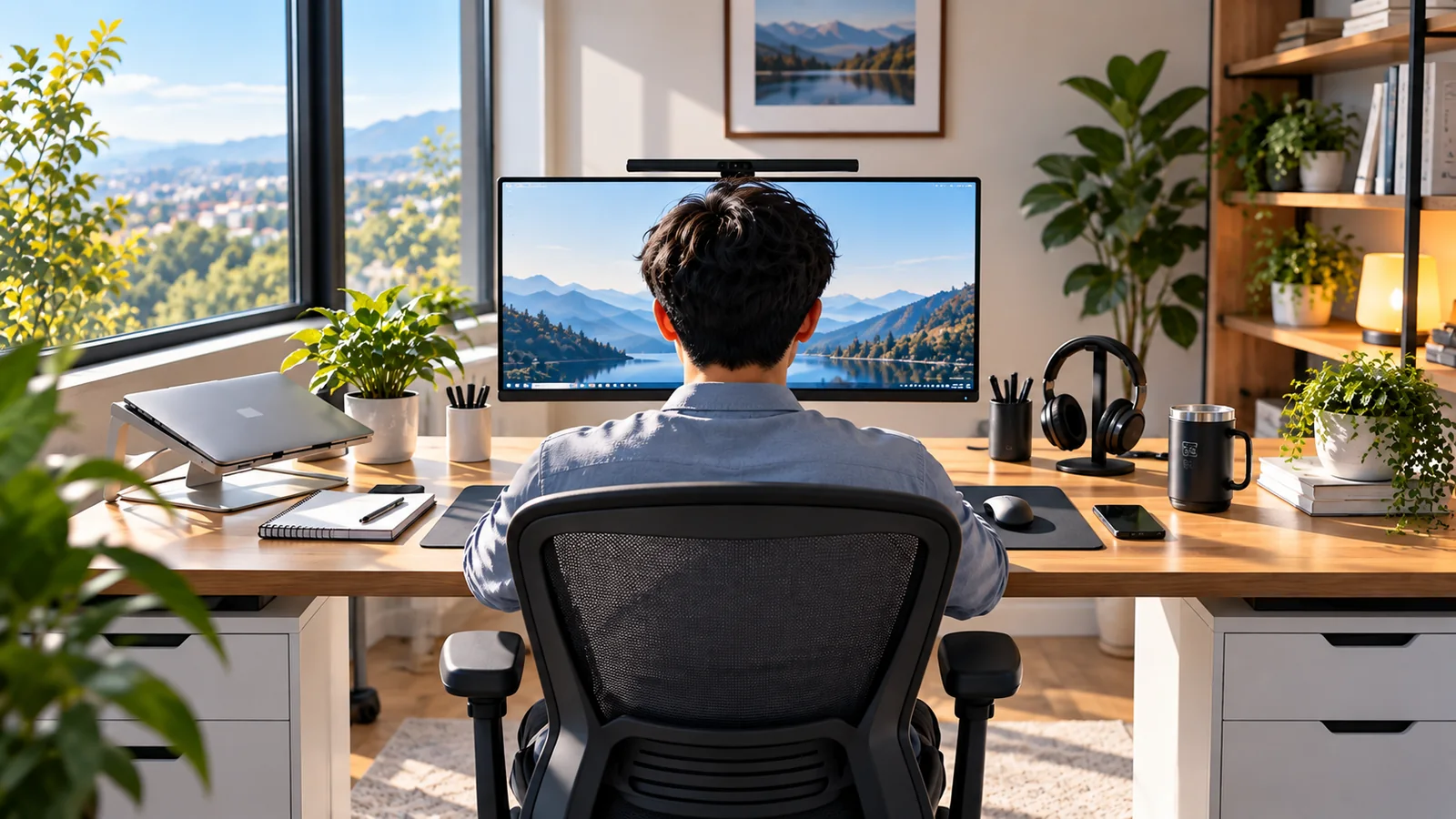
A good workspace doesn't need expensive furniture or a picture-perfect desk. Start with the space you have, then adjust your desk, screen, chair, lighting, and surroundings to make your work easier to start and easier to stay with.
You can have a good desk, a comfortable chair, and an expensive monitor and still find yourself avoiding work.
Sometimes the problem isn't the equipment. It's the environment around it.
Maybe your desk is facing the wrong direction. Your screen has a window reflecting across it. Your keyboard is too far away. There are papers and gadgets everywhere. Your chair feels uncomfortable after an hour. Or every time you sit down, your phone, TV, or something else in the room seems to compete for your attention.
A good workspace won't make you want to work every time. But it can remove some of the small problems that make work harder to start.
That's the goal here. You don't need to build the perfect desk setup. You need a workspace that gets out of your way.
Before buying anything, look at the problems in your current workspace.
- - Put your desk somewhere you can work without constant distractions.
- - Position your monitor so you can view it comfortably without leaning or twisting.
- - Keep your keyboard, mouse, and frequently used items within easy reach.
- - Check lighting and screen glare before buying new equipment.
- - Make sure your chair, desk, and monitor work together.
- - Fix the biggest problem first instead of changing everything at once.
A few small adjustments may make more difference than adding another accessory to your desk.
Start With the Space, Not the Equipment
Before you start shopping for a new desk, monitor, or chair, look at the space you already have.
Where you put your desk can affect how easy it is to work there. If possible, choose a spot where you can control the main distractions around you, including noise, lighting, temperature, and foot traffic.
The CDC's guidance on office environments recommends paying attention to factors such as light, noise, temperature, airflow, space, and the design of the workstation when creating a healthy work environment.
You also don't necessarily need a separate home office.
A desk in a bedroom, living room, dining area, or another part of your home can work. What matters is whether you can make that area function as a reasonably consistent place for work.
If you work in a shared space, you probably won't be able to control everything. Focus on what you can change:
- Where your desk faces
- What is directly in your view
- How much clutter is around you
- Where your work equipment lives
- How you deal with noise
- How easily you can separate work from everything else
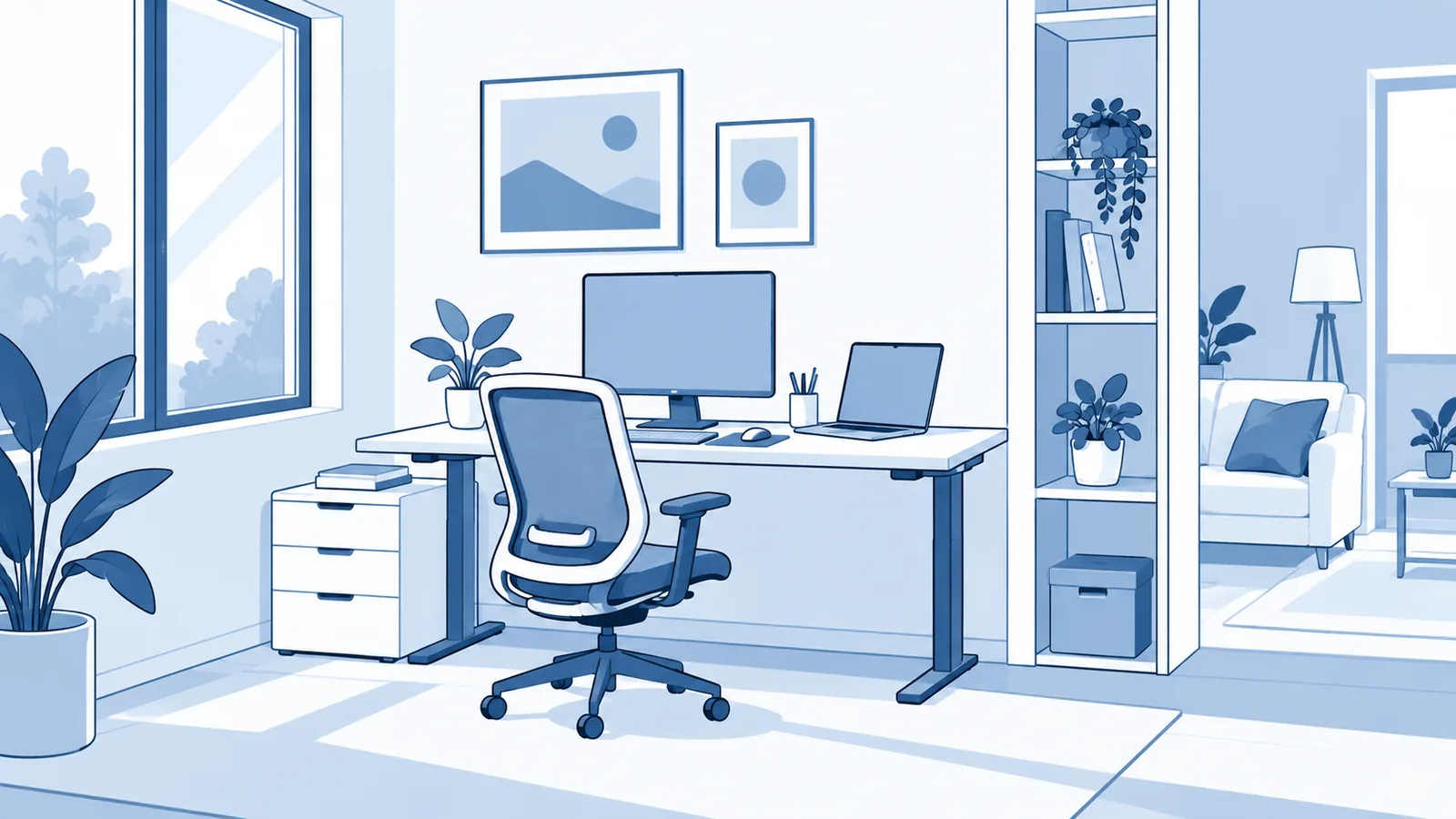
The best workspace is often the one you can actually maintain.
Give Your Work Area a Clear Purpose
A workspace can become distracting when everything around it is competing for your attention.
Your desk might also become the place where you leave unopened mail, chargers, paperwork, snacks, and whatever else happens to land there.
You don't need an empty desk. You just need to make the important things easy to find.
A simple rule is:
“Keep the things you use for work close. Keep everything else out of the way. ”
That might mean leaving your keyboard, mouse, notebook, and headphones on the desk while putting rarely used accessories somewhere else.
Frequently used items should generally be within easy reach. OSHA's computer workstation evaluation checklist recommends keeping frequently accessed items close enough to reach comfortably without unnecessarily extending the arms.
This also makes it easier to start working.
When you sit down, you shouldn't have to spend the first 10 minutes preparing the workspace before you can actually begin.
Choose the Right Spot for Your Desk
Your desk doesn't have to face a particular direction for everyone.
But you should pay attention to what is around your screen.
Windows are a good example.
Natural light can make a room more pleasant, but direct light or reflections can make a monitor harder to see. OSHA's workstation guidance on lighting and glare recommends arranging the screen and light sources to reduce reflected glare.
A practical starting point is to place your monitor so that a window is to the side of the screen, rather than directly behind it or directly in front of it.
You can then adjust blinds, curtains, or your desk position if the room still feels too bright.
Don't worry about getting the exact position right on the first try. Sit down, look at your screen, and see where the light is actually coming from.
Position Your Monitor for Comfortable Viewing
Your monitor shouldn't force you to constantly bend your neck, twist your head, or lean forward.
OSHA's workstation guidance recommends positioning the monitor directly in front of you, with the top of the screen at or below eye level. The screen should also be far enough away that you can read it without leaning forward or backward.
Mayo Clinic's office ergonomics guide gives similar advice, recommending that the monitor be about an arm's length away, with the top of the screen at or slightly below eye level.
The exact position will depend on your monitor size, eyesight, desk, and how you work.
The important part is what happens when you sit normally.
You shouldn't need to:
- Tilt your head backward to see the screen
- Bend your neck down for long periods
- Twist your head to one side to use your main monitor
- Lean toward the screen to read
- Squint because of glare
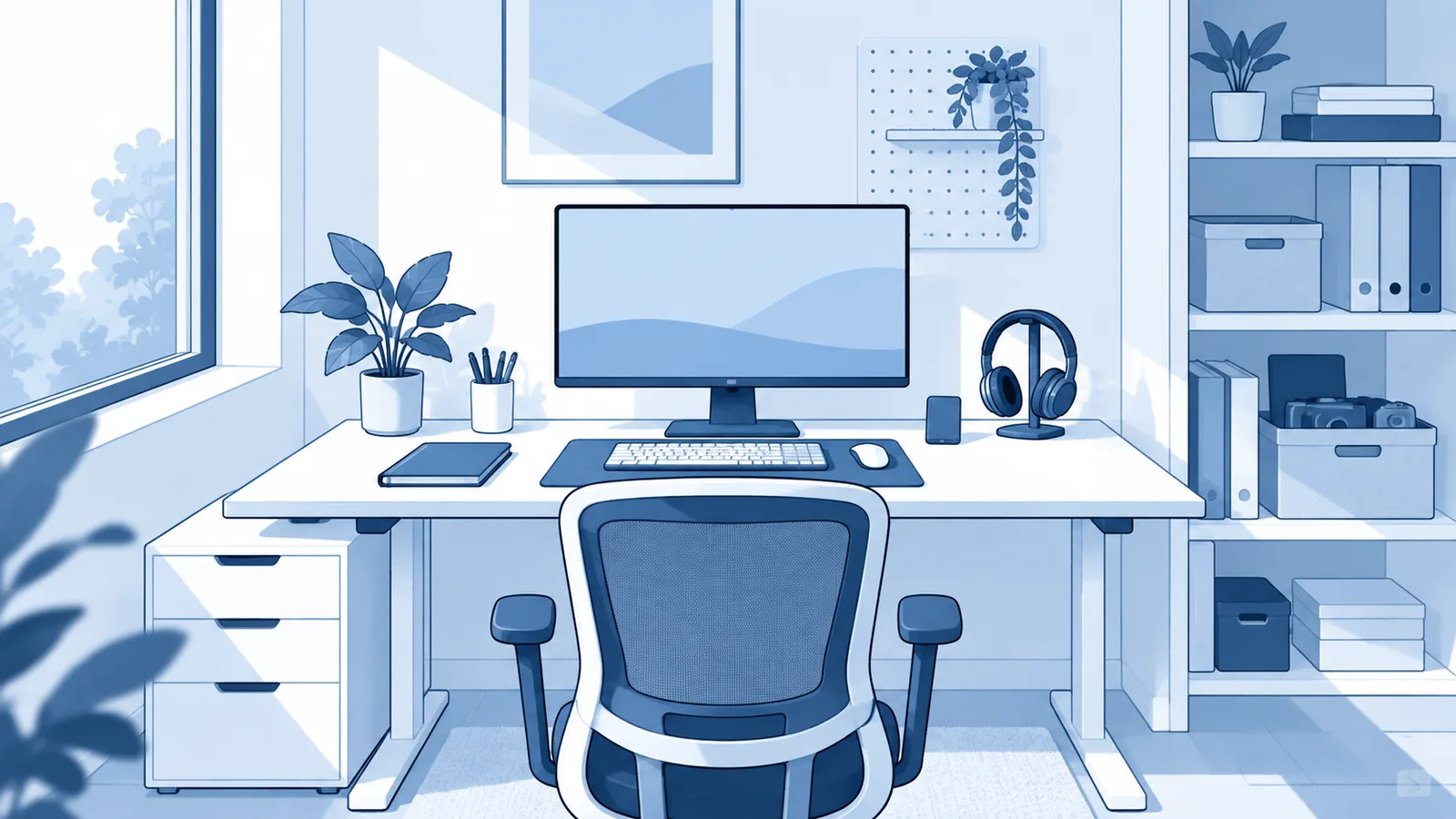
If you use multiple monitors, put the screen you use most directly in front of you. If you split your work fairly evenly between screens, place them beside each other so you can move between them without excessive head movement.
Keep Your Keyboard and Mouse Close
A large desk gives you plenty of room, but that doesn't mean your keyboard and mouse should sit far away from you.
They should be close enough that you can use them without reaching forward or lifting your shoulders.
Mayo Clinic recommends keeping the keyboard in front of you with your wrists and forearms aligned, while the mouse or other pointing device should be within easy reach on the same surface.
OSHA's guidance on workstation positions similarly recommends keeping the wrists and hands aligned with the forearms and the elbows close to the body.
This is one reason a huge desk isn't automatically a better desk.
More surface area is useful when you need it. But if the extra space simply makes you reach farther for the things you use all day, it isn't helping.
Make Your Chair and Desk Work Together
A comfortable chair by itself isn't enough.
Your chair, desk, monitor, keyboard, and mouse all affect one another.
For example, raising your chair may help you reach a desk that is too high, but then your feet may no longer rest comfortably on the floor. A footrest can help in that situation.
Mayo Clinic's office ergonomics guidance recommends adjusting chair height so your feet are supported and your arms can remain in a comfortable position while working.
When you're sitting, look for a position where:
- Your feet are supported
- Your back has support
- Your shoulders can stay relaxed
- Your elbows remain close to your body
- Your wrists aren't bent awkwardly
- Your legs have enough room under the desk
OSHA's guidance on good working positions describes these principles as part of maintaining a neutral working position.
There isn't one perfect sitting position for everyone.
The bigger goal is to create a setup that supports you and allows you to change position during the day.
Leave Enough Room Under the Desk
This is an easy part of a workspace to overlook.
People often use the space underneath the desk for boxes, computer equipment, bags, storage bins, and other things. Eventually, there's barely enough room for their legs.
That can make it harder to sit comfortably and change position.
Mayo Clinic recommends leaving enough clearance for your knees, thighs, and feet and avoiding storage that unnecessarily reduces that space.
Before buying a larger desk, check the space underneath the one you already have.
You may discover that the problem isn't the desktop.
It's the lack of usable legroom.
Fix Lighting Before Buying More Screens
If your screen is difficult to see, buying a better monitor may not solve the problem.
Look at the light first.
OSHA's workstation evaluation guidance recommends adjusting lighting and reducing reflected glare so that people don't have to squint or adopt awkward positions to see their screens clearly.
Try simple changes first:
- Move the monitor
- Adjust blinds or curtains
- Move a desk lamp
- Reduce harsh overhead lighting
- Adjust screen brightness and contrast
- Clean the screen
You don't necessarily need an expensive monitor light.
If you regularly switch between computer work and paperwork, adjustable task lighting can make more sense because you can direct light toward the physical task without putting it directly onto the screen. OSHA's workstation guidance distinguishes between lighting for computer work and brighter task lighting for paperwork.
Control the Distractions You Actually Notice
Noise is one possible distraction, but it isn't the only one.
The CDC's guidance on office environments includes noise, light, temperature, airflow, space, and other environmental factors when discussing a healthy office environment.
At home, your biggest distraction might be something completely different.
It could be:
- A television in the next room
- Household conversations
- Traffic outside
- Construction
- A loud air conditioner
- Phone notifications
- Pets
- People regularly walking through the room
You don't necessarily need silence.
Some people work comfortably with background sound, while others need a quieter environment.
The useful question is:
“What keeps pulling your attention away from the task?”
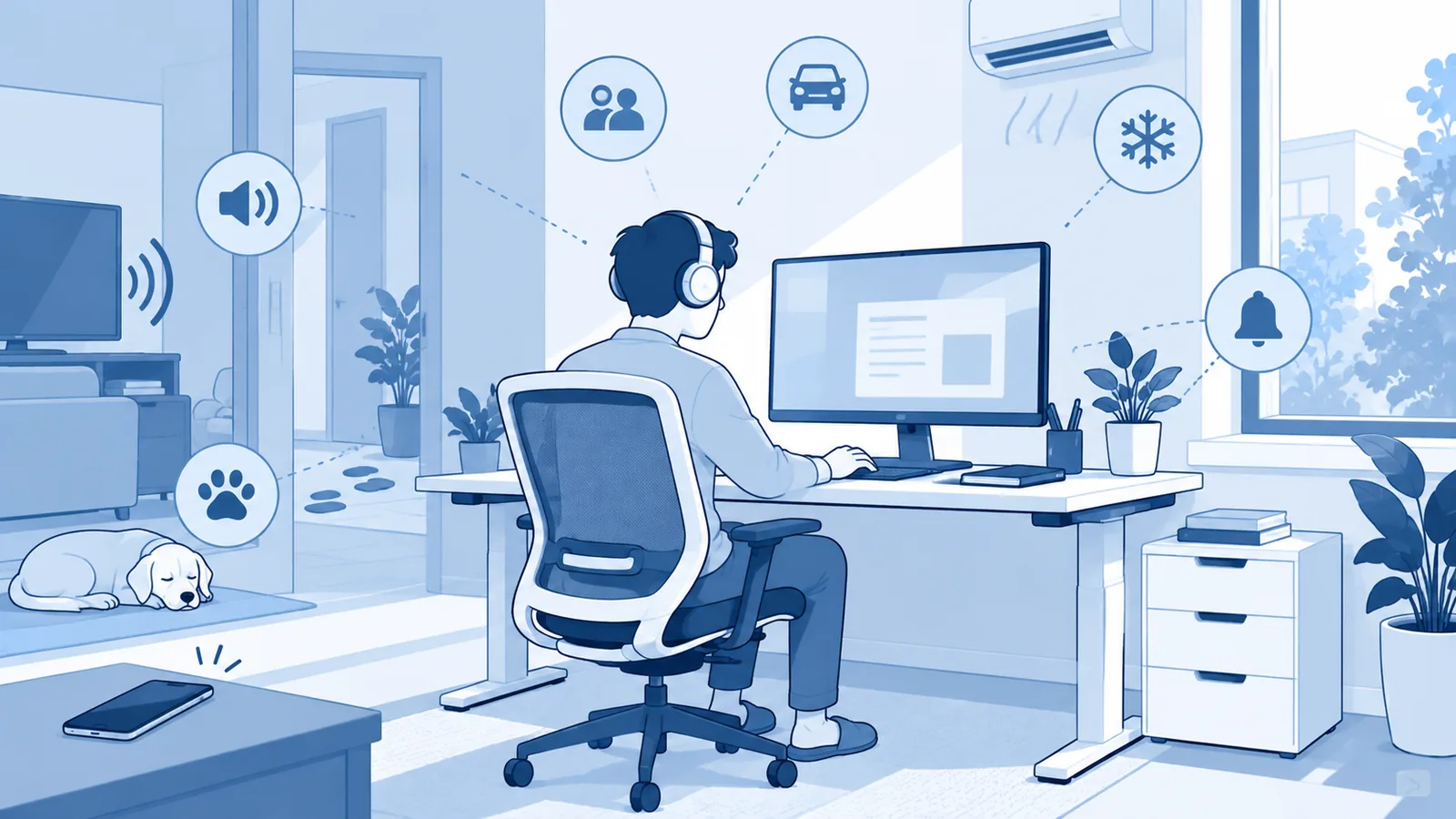
Once you know that, you can work on that specific problem instead of trying to make the entire room distraction-free.
Don't Let Your Workspace Become Another Distraction
A workspace can be too busy.
It can also be too complicated.
You don't need five desk accessories, three lighting devices, a dozen productivity apps, and a collection of gadgets just because they look good in workspace photos.
Every item on your desk should have a reason for being there.
If something doesn't help you work, store it somewhere else.
That doesn't mean your desk needs to look like a showroom. A notebook, coffee mug, plant, or personal item isn't automatically a distraction.
The point is to notice what actually pulls your attention away.
Your workspace should support the way you work, not become another project you have to manage.
Avoid Staying in One Position for Too Long
Even a well-adjusted chair and desk don't make sitting in one position all day a good plan.
OSHA recommends changing working positions regularly and avoiding prolonged static postures. Its guidance encourages opportunities to change position, move, stretch, and vary activities.
That doesn't mean you need an expensive standing desk.
You can simply build movement into the way you work.
Stand up during a phone call. Get some water. Walk around after finishing a task. Change your chair position. Work standing for part of the day if your setup allows it.
The goal isn't to find one perfect posture and hold it for eight hours.
“A better workspace gives you options. ”
If You Work From a Laptop, Separate the Screen and Keyboard
Laptops are convenient because the screen and keyboard travel together.
They're also difficult to position comfortably for long periods because raising the screen raises the keyboard with it.
If you raise the laptop screen to a more comfortable viewing height, the built-in keyboard may become too high for comfortable typing.
That's why Mayo Clinic recommends considering an external keyboard and mouse with a laptop stand for desk-based laptop use. This allows the screen and input devices to be positioned separately.
You don't need to turn every laptop setup into a full desktop workstation.
But if you spend most of your workday at a laptop, separating the screen from the keyboard gives you more flexibility.
Build Around the Work You Actually Do
This is where a lot of workspace advice goes wrong.
A video editor, writer, accountant, designer, programmer, customer support worker, and remote manager may all need different setups.
Someone who spends most of the day reading and writing may need a different monitor arrangement from someone working with large spreadsheets.
Someone who takes frequent calls may care more about microphone and headphone placement.
Someone who works with paper documents may need more open desk space.
Your workspace should follow your work.
Start by asking:
“What do I actually do for most of my workday?”
Then arrange the things you use most often around that activity.
OSHA's workstation guidance emphasizes that workstation components should be selected and arranged around the user's tasks and needs rather than following one fixed setup.
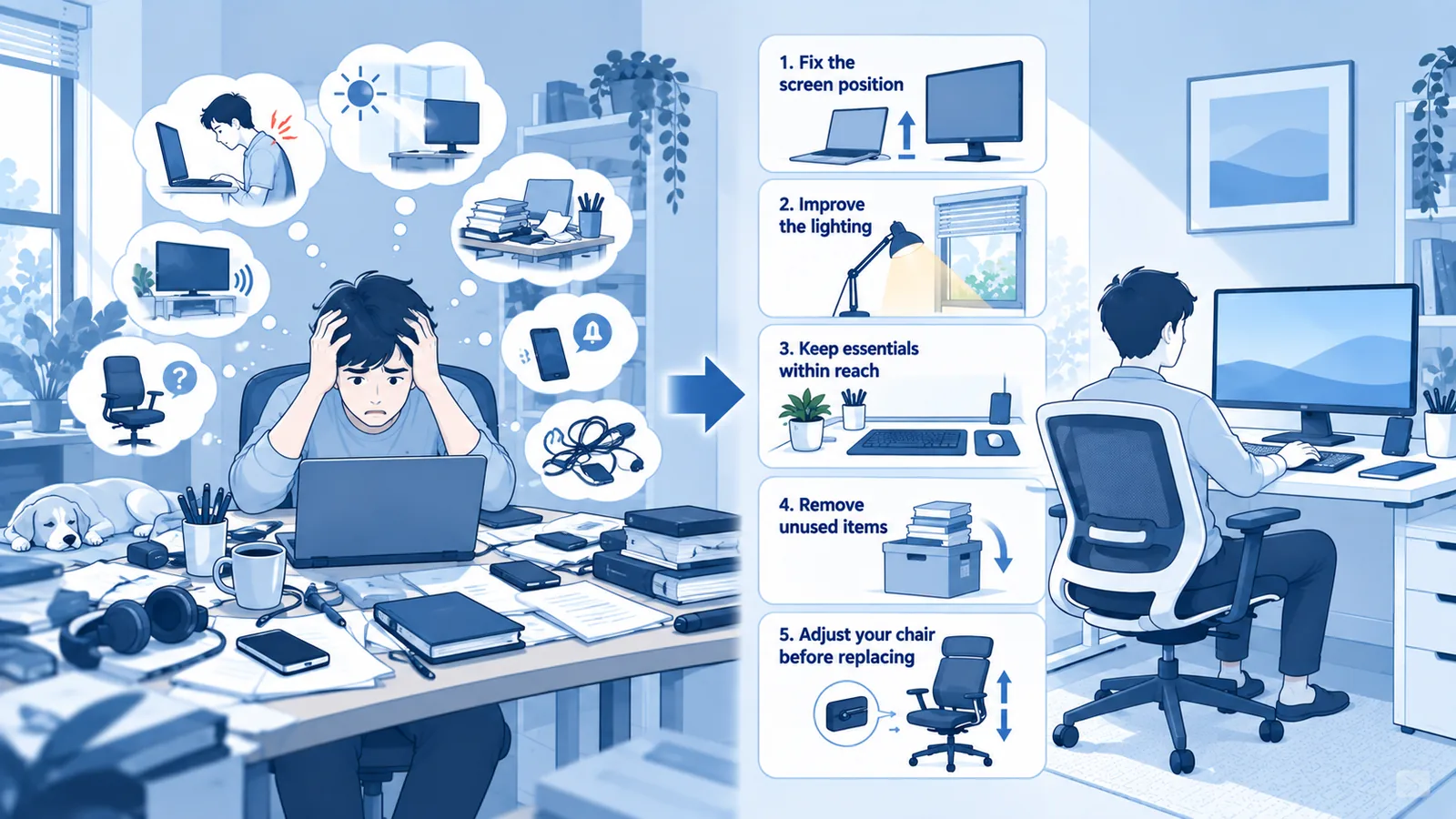
Don't Try to Fix Everything at Once
If your workspace isn't working, don't immediately make a shopping list.
Start with the problems that bother you most.
If you're constantly looking down at a laptop, deal with the screen position.
If you can't see your monitor because of window glare, fix the lighting.
If you're constantly reaching for your mouse, move it closer.
If your desk is crowded, remove things you rarely use.
If your chair doesn't support you properly, adjust it before replacing it.
This approach can save money, but more importantly, it helps you understand what your workspace actually needs.
You may eventually decide you need a new desk or chair. That's fine.
Just make the purchase because it solves a problem, not because your workspace doesn't look like the one you saw online.
A Simple Workspace Reset
If you want to improve your workspace today, start here.
1. Clear the unnecessary stuff
Remove anything you don't use regularly.
2. Check your screen
Put your primary monitor directly in front of you and adjust its height and distance so you can view it comfortably.
3. Check your keyboard and mouse
Bring them close enough that your shoulders can relax and your elbows stay near your body.
4. Adjust your chair
Make sure your back and feet are supported and that your chair works with the height of your desk.
5. Check the lighting
Look for reflections or glare on your screen and adjust the light source before buying another accessory.
6. Look under your desk
Make sure bags, boxes, and equipment aren't taking away the legroom you need.
7. Identify your biggest distraction
Don't try to eliminate every distraction. Start with the one that repeatedly breaks your concentration.
8. Make tomorrow's work easier to start
Leave the things you use every day where you can easily reach them.
You don't need to change everything in one afternoon.
Work in the space for a few days, notice what bothers you, and make the next adjustment from there.
Your Workspace Should Support the Way You Work
A workspace doesn't need to look impressive to work well.
You don't need a massive desk, an expensive chair, multiple monitors, or a wall full of accessories.
Start with the basics: a comfortable position, a screen you can view without awkwardly leaning or twisting, input devices that are easy to reach, enough room to move, lighting that doesn't fight your screen, and an environment with as few unnecessary distractions as possible.
Then pay attention to what happens when you actually work there.
If something keeps bothering you, fix that thing.
If something you bought doesn't make your work easier, you don't have to keep it just because it looks good.
The goal isn't to create a workspace that magically makes you productive.
“It's to create a workspace that makes it easier to sit down, get comfortable, and focus on the work in front of you.”