
Desks
How to Choose a Standing Desk
A standing desk has to work at more than one height. This guide shows you how to choose one based on your actual workstation, including your sitting and standing positions, monitor setup, laptop, desktop space, stability, equipment weight, cables, and room.
By Ronald Dadivas · Published 2 October 2026
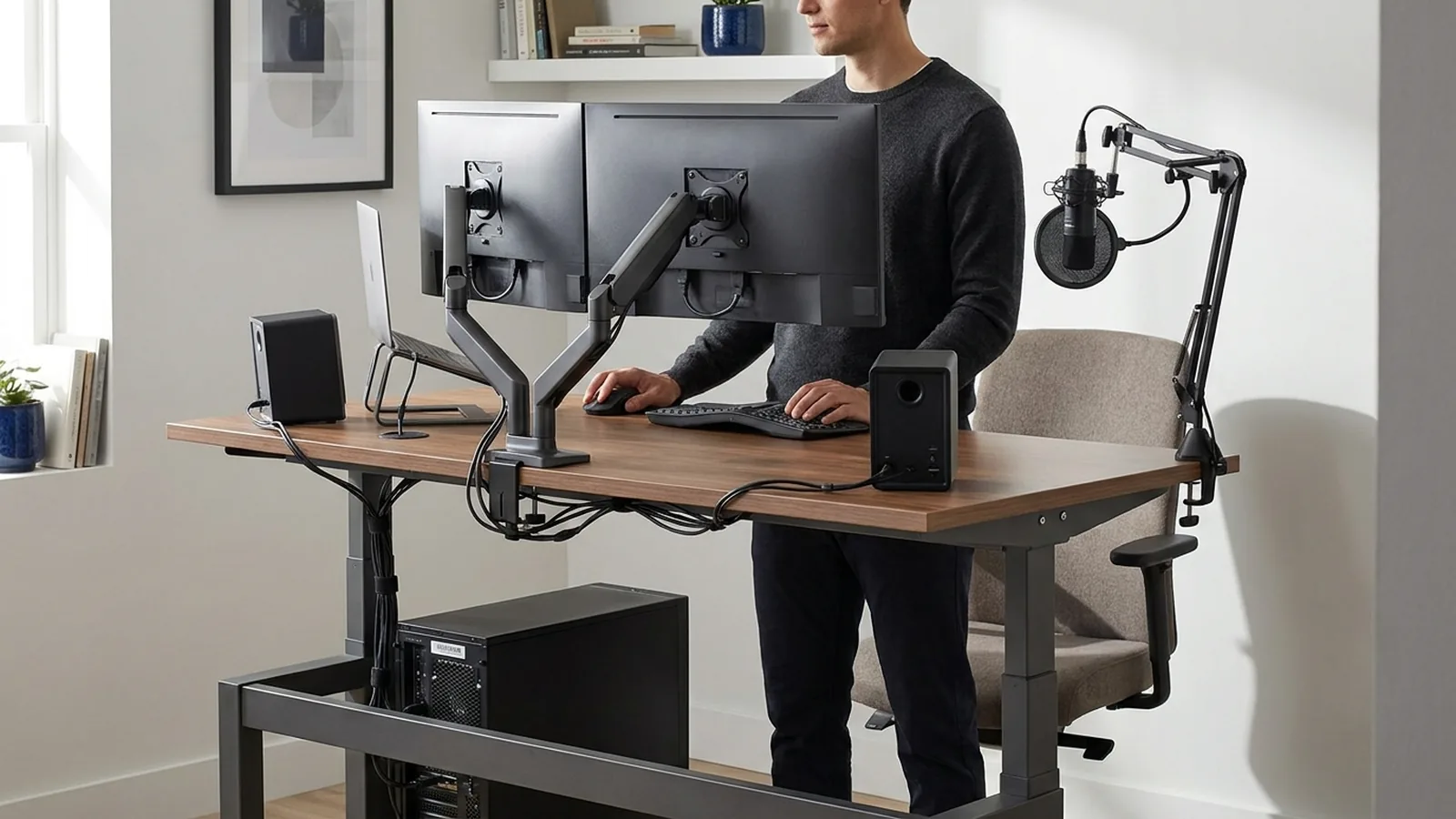
You buy a standing desk because you want more freedom to change position during the workday.
Then the problems start.
The desk may feel comfortable when sitting but awkward when raised. Your laptop screen may be too low when the keyboard is comfortable. A monitor arm may move more than expected. Cables may become tight as the desk rises. A large desktop may fit your equipment but leave little room to work around it.
None of these problems are obvious from a product page.
A standing desk is not just a desk that moves up and down. It is a workstation that has to keep working while it moves.
That is the key to choosing one.
Instead of comparing every feature first, look at what happens to your actual workstation when you switch between sitting and standing. Then use the desk's height range, desktop, frame, lifting capacity, controls, and other features to solve those requirements.
Decide Whether You Need a Full Standing Desk
Before comparing standing desks, decide what you actually want to change.
If your current desk is comfortable, fits your equipment, and works well in your room, replacing the entire workstation may not be necessary.
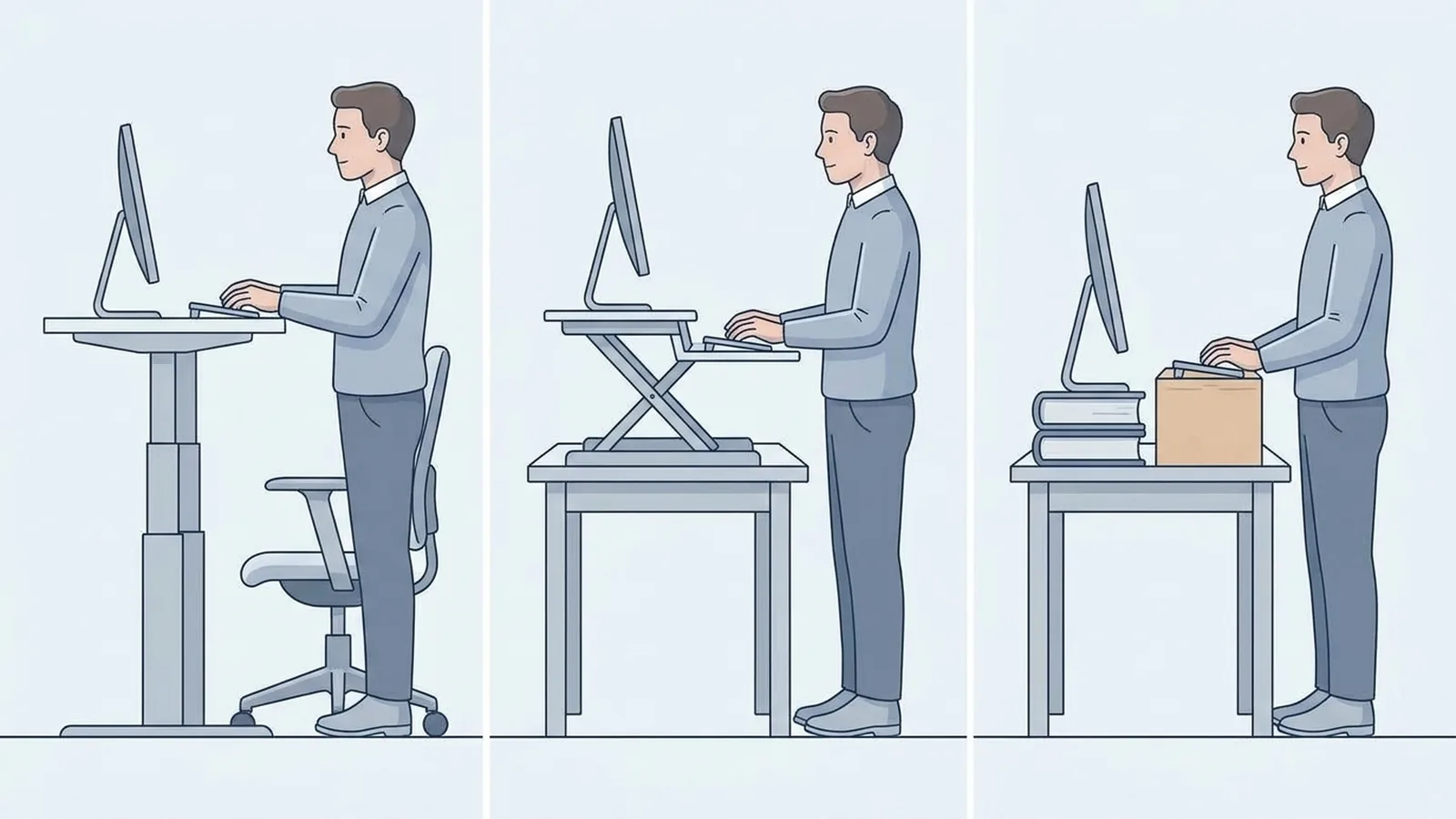
There are several ways to create a sit-stand setup.
A full height-adjustable desk
The entire work surface moves.
This makes sense when you want your monitor, keyboard, mouse, laptop, and other equipment to move together.
It can also give you more freedom when building a permanent sit-stand workstation because you are not limited by the surface of an existing desk.
A desk converter
A converter sits on top of an existing desk and raises the equipment placed on it.
This can make sense when your current desk already has the right size and storage but you want to add a standing position.
The trade-off is that the converter takes up part of your existing work surface. Its own adjustment range and platform size can also limit how much equipment you can place on it.
A temporary standing setup
You can also test the idea before buying anything.
The goal is not to create a perfect ergonomic workstation from boxes or other makeshift equipment. The goal is simply to find out whether you actually want to alternate between sitting and standing during your normal work.
A standing desk is useful only if you will use the adjustment.
Consumer Reports also identifies dedicated sit-stand desks and converters as different approaches, with each fitting different workstation needs.
If your existing desk already works well, a converter may solve the problem without requiring you to replace everything.
Look at Your Current Workstation
Your equipment tells you more about the standing desk you need than the product category does.
Think about what you use during a normal work session.
You might have:
- A laptop
- One monitor
- Two monitors
- A monitor arm
- Keyboard and mouse
- Speakers
- Microphone
- Webcam
- Notebook
- Phone
- Desktop computer
- External storage
- Charging equipment
Now ask a more useful question:
Which of these things need to move when I stand?
That changes the decision.
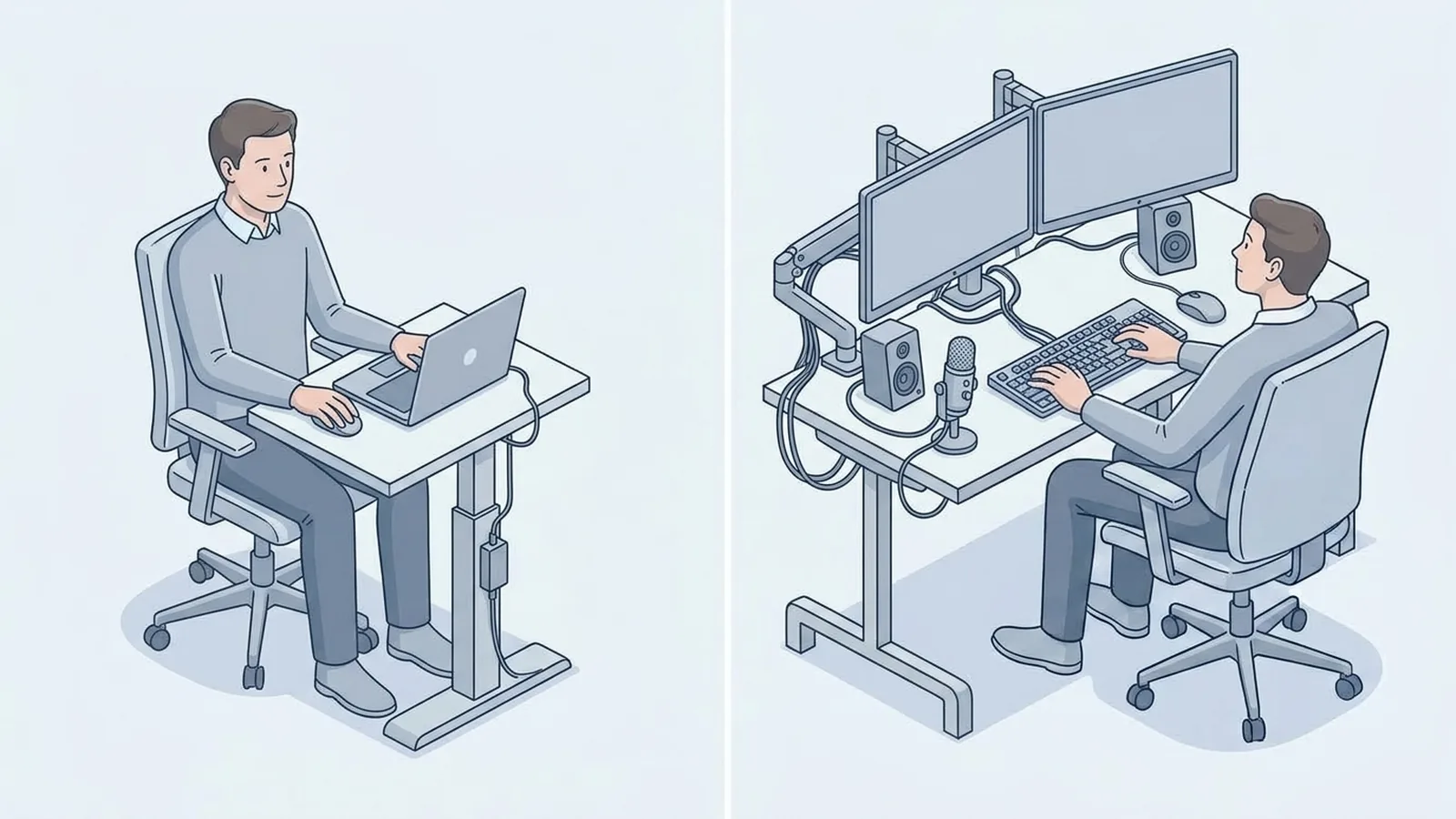
A laptop-only workstation has different requirements from a dual-monitor setup with monitor arms, speakers, and a microphone.
A person using one monitor may need little more than a suitable height range and enough desktop space.
Someone with two large monitors may care much more about desktop depth, monitor-arm clearance, stability, and total load.
This is why shopping by specifications alone can be misleading. The same desk can behave differently depending on what you put on it.
Find the Height Range You Actually Need
Height range is one of the most important specifications on a standing desk, but the largest number is not necessarily the most useful one.
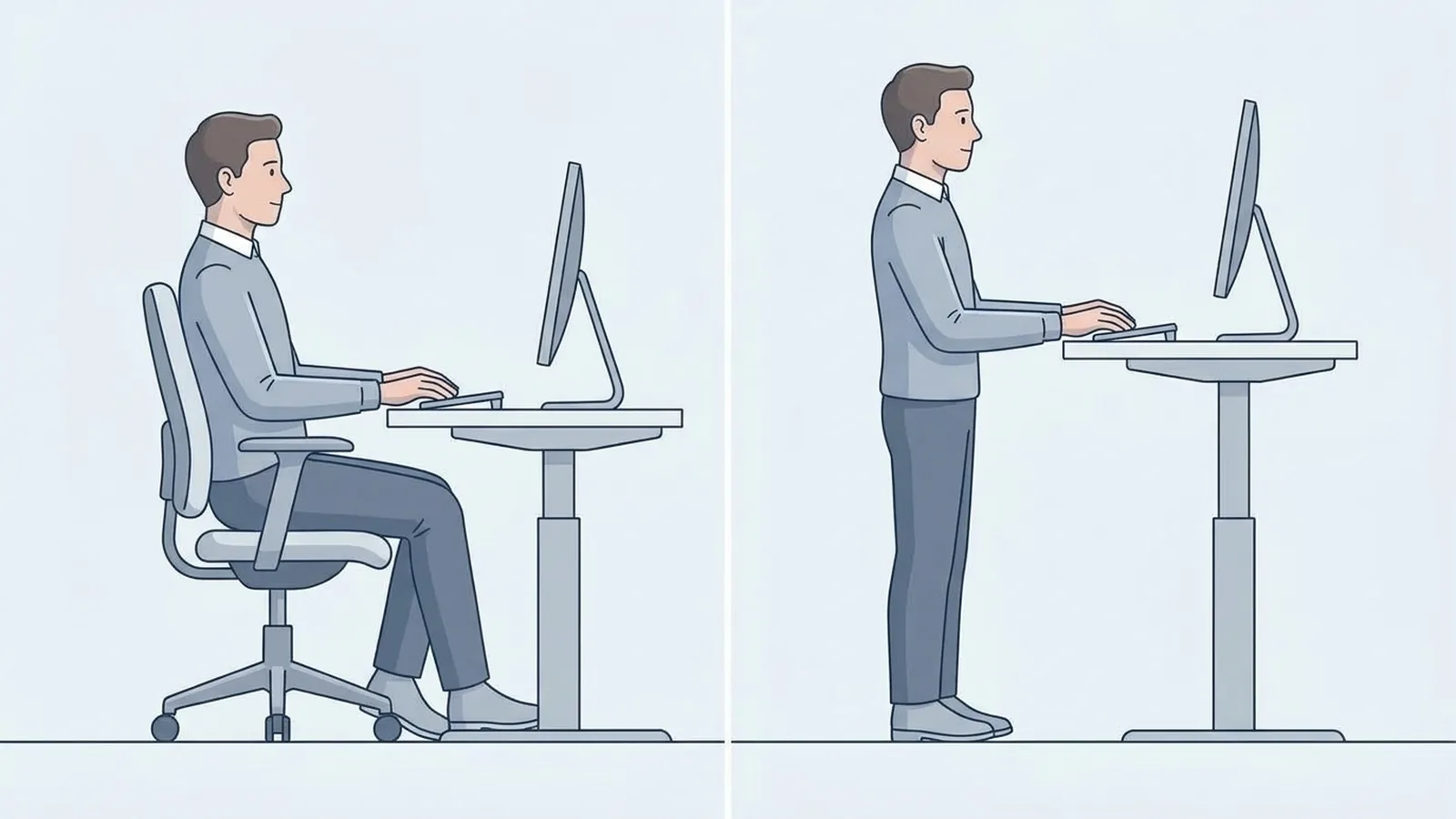
A desk has to work in your sitting position and your standing position.
The Canadian Centre for Occupational Health and Safety recommends that a sit-stand workstation meet the user's needs in both positions. Its guidance also recommends keeping the keyboard and mouse aligned appropriately and setting the standing work surface around standing elbow height.
Measure your working positions
Sit in your normal work chair.
Relax your shoulders and bend your elbows as if you were typing. Look at where the keyboard naturally needs to sit.
Then stand naturally and repeat the process.
You now have two useful reference points:
Seated working height
and
Standing working height
Consumer Reports similarly recommends measuring seated and standing elbow height instead of assuming that a published desk range will fit every person.
When comparing desks, check whether the listed height refers to the complete desk with the desktop installed or only the frame.
That distinction matters because the desktop itself adds thickness.
Pay attention to the lowest setting
Tall users often focus on how high the desk can rise.
Shorter users may have the opposite concern.
A desk that reaches an impressive standing height but cannot descend far enough may still be difficult to use comfortably while seated.
Your useful range is therefore not the biggest range printed on the product page.
It is the range that covers your actual working positions.
Think About the Desktop Size
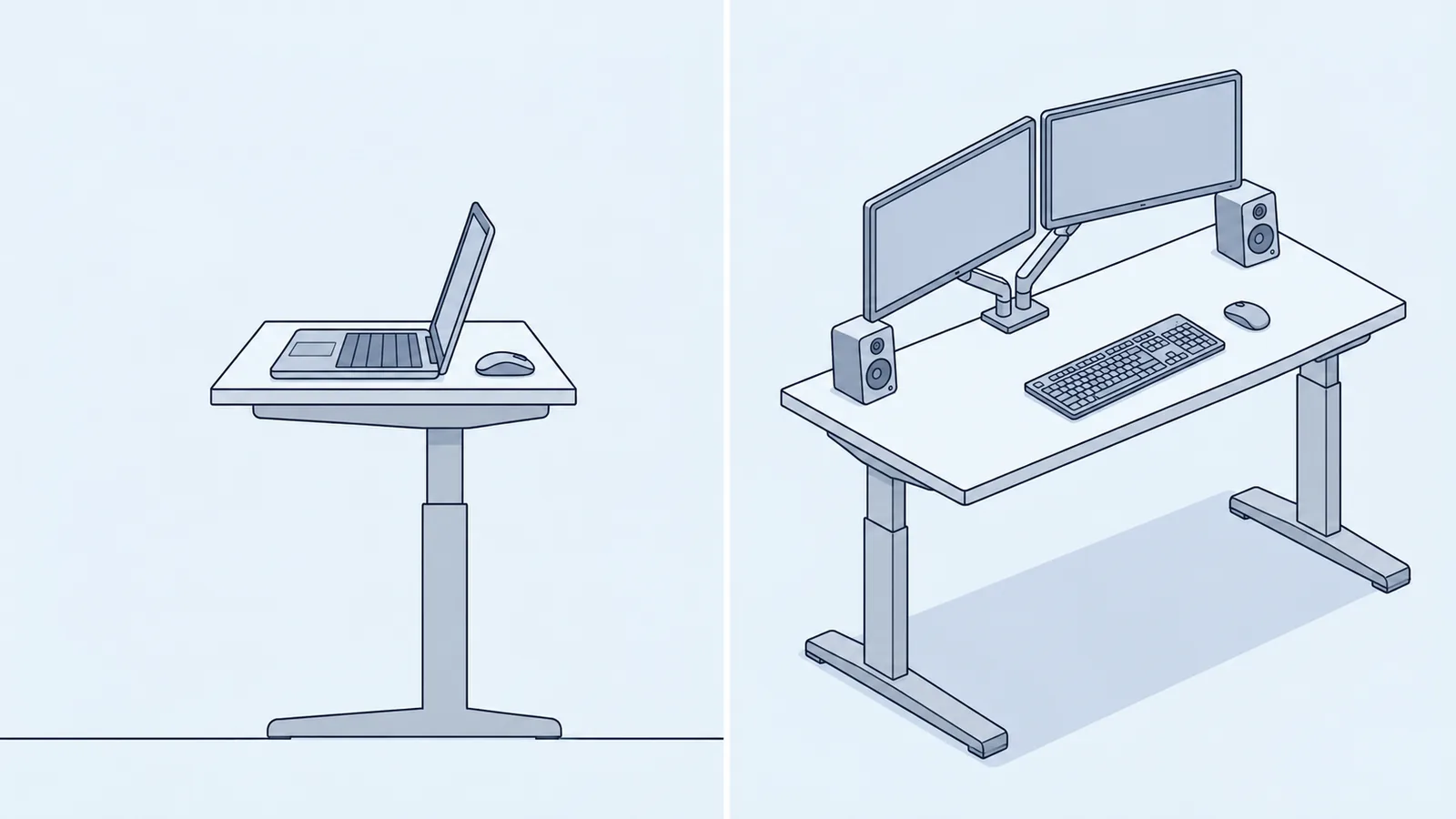
You do not necessarily need a huge standing desk.
You need enough usable surface for the equipment you actually use.
A simple laptop setup can work with much less space than a workstation with two monitors, speakers, a microphone, and a large keyboard.
Think about your desktop in three dimensions:
- Width: how much equipment needs to sit side by side?
- Depth: how much space do you need between yourself and the monitor?
- Clear working area: how much of the surface needs to remain free for writing, reading, or other tasks?
Monitor placement is particularly important. OSHA recommends enough desk depth to position the monitor at least 20 inches away and notes that limited work-surface space can force equipment into awkward positions.
If you use two monitors, account for the monitor stands or arms as well as the screens themselves.
If you use a monitor arm, check where its clamp or mounting system will sit. A desktop that technically fits your monitors may not provide enough usable space once the arms, keyboard, and other equipment are installed.
For a deeper look at desk sizing, see How to Choose the Right Desk Size for Your Workspace.
Solve the Laptop Screen Problem
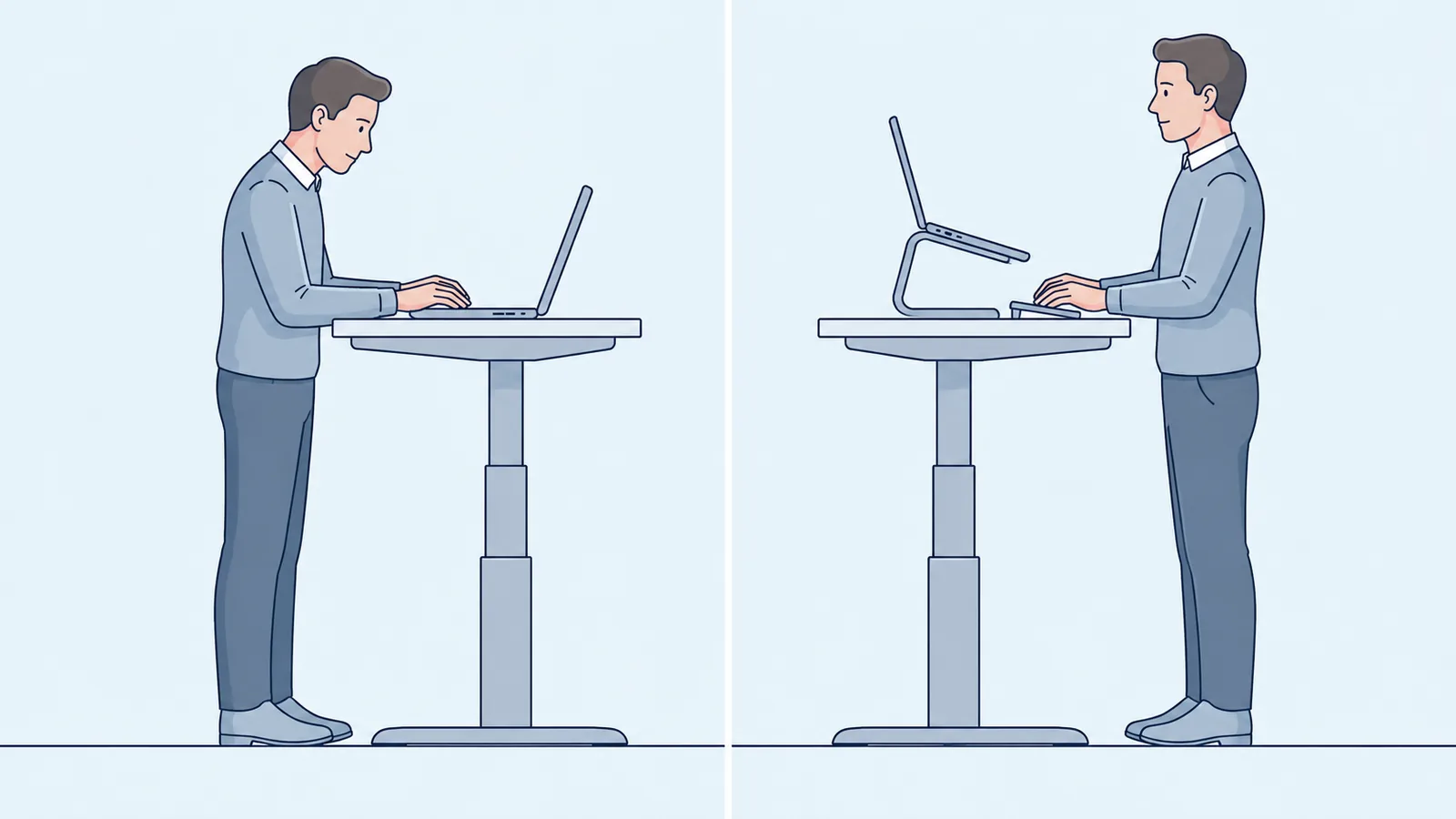
Laptop users have a built-in compromise that desktop users can usually avoid.
The screen and keyboard are attached.
Raise the laptop so the screen is at a comfortable height, and the keyboard rises with it. Lower the laptop to make the keyboard more comfortable, and the screen may end up too low.
A standing desk makes this problem more noticeable because the entire work surface changes height.
Separate the Screen From the Keyboard
A more flexible arrangement is:
Laptop on a stand or external monitor
↓
External keyboard and mouse on the desk
This lets you position the screen separately from the devices you use to type and control the computer.
It also gives you more flexibility when switching between sitting and standing.
If you work primarily from a laptop for several hours a day, think about this setup before choosing the desk. Otherwise, you may buy a desk with a wide height range and still end up fighting the position of your laptop.
Give Your Monitor Enough Room to Move
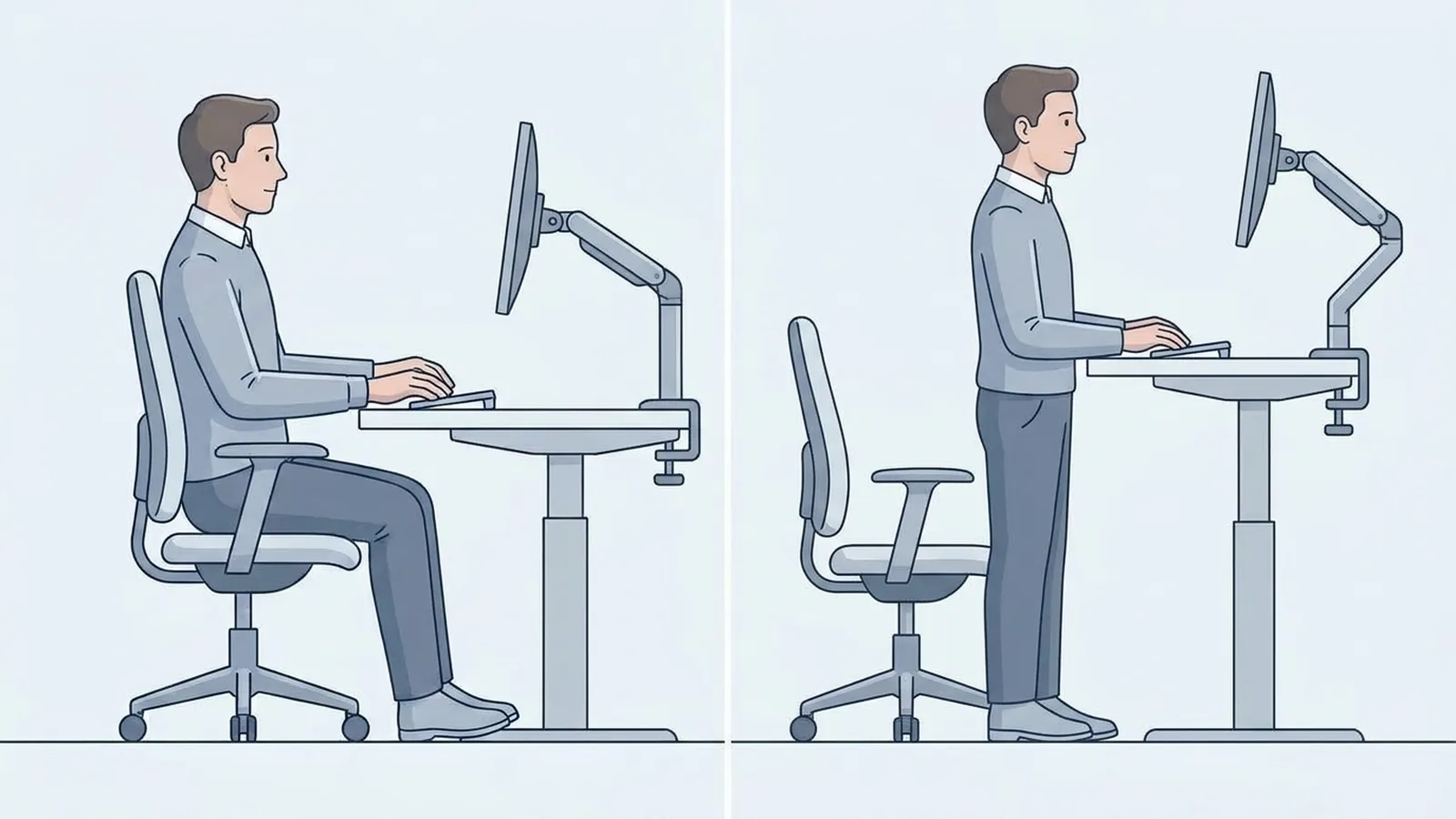
Your keyboard follows your hands.
Your monitor follows your eyes.
Those two things do not necessarily need to move in exactly the same way.
Your monitor should remain directly in front of you and at a comfortable viewing distance. The top of the screen should generally sit around eye level or slightly below it.
A standing desk changes the height of your keyboard, so your monitor may need its own adjustment.
When a Monitor Arm Makes Sense
A monitor arm can give you more control over:
- Screen height
- Viewing distance
- Screen angle
- Horizontal position
That can be useful when switching between sitting and standing.
But a monitor arm also becomes part of the physical setup.
It adds weight. It occupies mounting space. It may extend the monitor away from the center of the desk.
For a simple laptop setup, you may not need one.
For a large external monitor or multiple monitors, independent monitor adjustment can make the workstation easier to configure.
If you use multiple monitors, pay attention to which screen you use most. Your primary display should be positioned where you can look at it comfortably without repeatedly turning your head.
Check Stability at Your Working Height
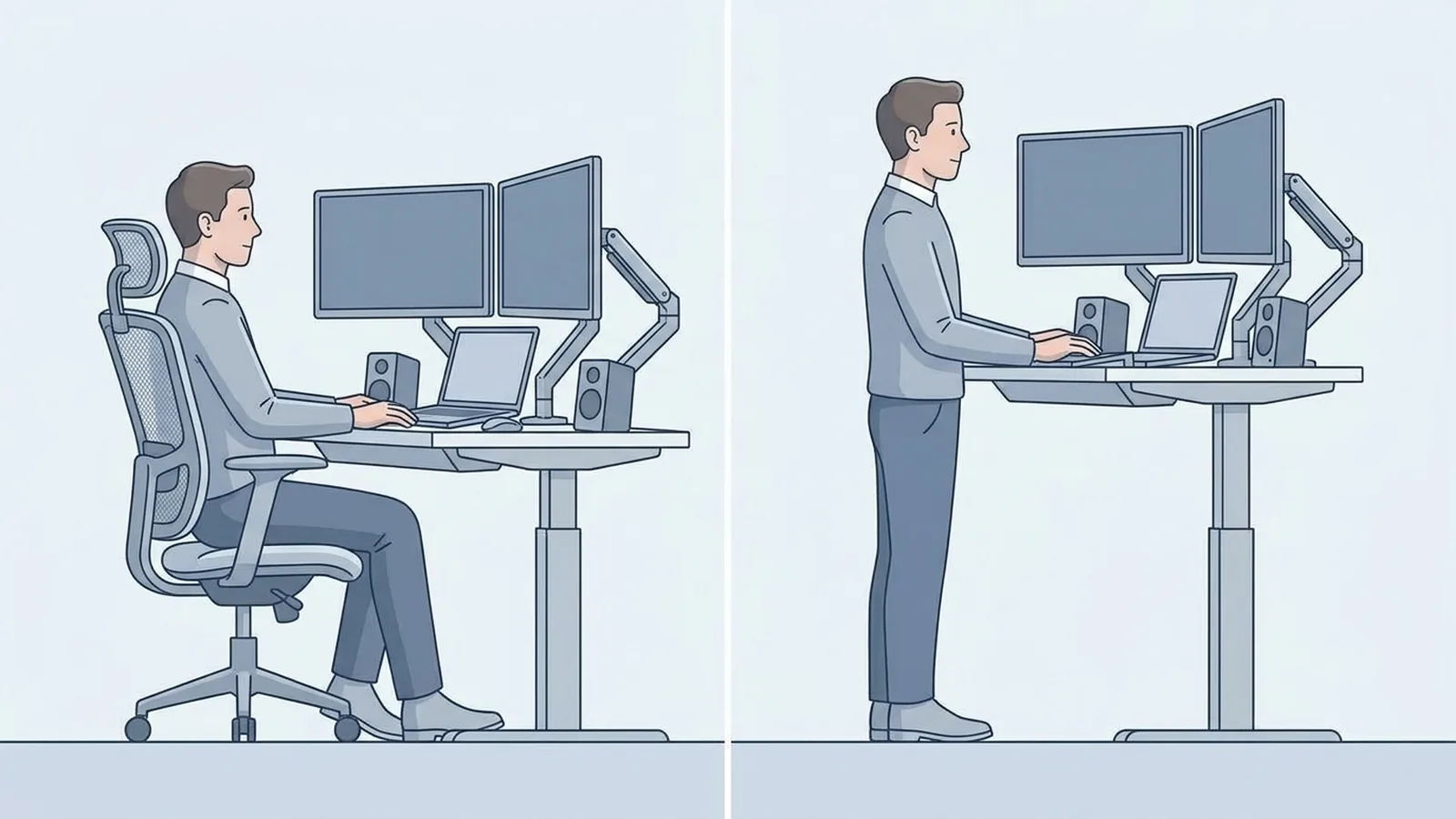
A desk can feel solid at its lowest position and feel different when raised.
That difference matters when you type heavily, move a mouse precisely, or use monitors mounted on arms.
Imagine a setup with:
- Two monitors
- Two monitor arms
- A microphone
- Speakers
- A laptop
- Keyboard and mouse
The desk is carrying more equipment, and some of that equipment extends away from the desktop.
So the useful question is not simply:
Is this standing desk stable?
Ask:
Does it remain stable enough for the way I use it at my normal standing height?
Frame construction, desk height, desktop dimensions, equipment distribution, and the floor underneath the desk can all affect how a workstation feels.
Do Not Use Motor Count as a Shortcut
You will see desks described as single-motor or dual-motor models.
Motor count can be useful information, but it does not tell you everything about the finished workstation.
Do not assume that a higher motor count automatically solves stability or makes a desk suitable for your setup.
Look at the complete system.
If you can test a desk in person, raise it to the height you would actually use.
Then do the work.
Type.
Move the mouse.
Rest your hands on the desk.
Adjust the monitor.
Use both screens if you have two.
That tells you more about the desk than simply standing beside it and looking at it.
Calculate the Weight of Your Setup
The advertised weight capacity is easy to overlook.
Your setup weighs more than the monitor.
Make a list of everything that will move with the desktop:
| Equipment | Include it? |
|---|---|
| Desktop | Yes |
| Monitor | Yes |
| Monitor arm | Yes |
| Laptop | Yes |
| Keyboard and mouse | Yes |
| Speakers | Yes |
| Microphone | Yes |
| Webcam | Yes |
| Accessories | Yes |
| PC tower | Yes, if it sits on the desk |
A realistic example
Imagine a workstation with:
- Desktop PC: 18 lb
- 27-inch monitor: 15 lb
- Monitor arm: 7 lb
- Laptop: 4 lb
- Keyboard and mouse: 3 lb
- Speakers: 6 lb
- Microphone and stand: 4 lb
- Webcam and small accessories: 3 lb
That setup would be about 60 lb in total.
In that situation, a desk advertised with a 60 lb maximum capacity would not give you much room to spare. A model rated for around 100 lb or more would provide considerably more capacity for that particular setup, assuming the manufacturer's rating applies to the way you plan to use the desk.
The numbers will vary from one workstation to another. A simple laptop-and-monitor setup may be much lighter, while a dual-monitor workstation with a desktop PC, speakers, monitor arms, and other equipment can add up quickly.
Add the approximate weight of everything that will move with the desktop, then compare the total with the manufacturer's stated lifting capacity.
Do not treat the maximum rating as a target amount of equipment to load onto the desk.
Also check how the manufacturer defines that capacity. The stated figure may apply to a particular configuration or operating condition.
The heavier and more complicated your workstation becomes, the more important this check is.
Plan for Cables Before the Desk Arrives
This is one of the easiest standing-desk problems to discover too late.
Your desk moves.
Your wall outlet does not.
When the desk rises, cables running between the moving equipment and fixed outlets have to accommodate that movement.
That can include:
- Monitor power
- Computer power
- Ethernet
- USB
- Speakers
- Microphone
- Charging cables
- Other accessories
Check the Cables Through the Full Range
Before installing everything, identify where each cable goes.
Then think about the desk at four positions:
Lowest position
↓
Normal seated position
↓
Normal standing position
↓
Highest position you might use
Look for anything that becomes tight, catches on furniture, or pulls equipment.
Do not assume that having enough cable length is the entire solution. The cable also needs a safe path as the desk moves.
If you attach a power strip beneath the moving desktop, remember that the connection from that power strip to the wall still needs enough slack for the full range of movement.
Test the entire range before you finish organizing the workstation.
Choose Between Electric, Manual, and Converter Desks
Once you understand your workstation, choosing the type of standing desk becomes much easier.
Electric Standing Desk
An electric desk is useful when you expect to change height regularly.
Its main advantage is convenience. If changing positions takes only a few seconds, there is less friction between you and the adjustment.
That can be useful for a permanent workstation where the entire setup moves together.
The trade-offs include higher cost and additional electrical components.
Manual Standing Desk
A manual desk uses a crank or another mechanical adjustment system.
This can make sense if you adjust the height occasionally and want to avoid the cost or electrical components of a motorized desk.
The practical question is simple:
How often will you actually change the height?
A manual desk may work well if you adjust it once or twice a day.
If turning a crank becomes annoying, however, you may eventually stop using the standing position.
Standing Desk Converter
A converter can make sense when your existing desk is already the right size and location.
It lets your equipment move without replacing the entire desk.
The trade-offs are reduced surface area and the converter's own size, weight, and adjustment range.
There is no universal answer here.
The right type depends on how much of your existing workstation you want to keep and how often you expect to change positions.
Which Features Are Actually Useful?
Once the fundamentals are right, convenience features become easier to judge.
Memory Presets
Presets can be useful if you regularly switch between two or more heights.
For example:
Preset 1: seated
Preset 2: standing
This saves you from adjusting the desk manually every time.
But presets cannot fix an incorrect height, poorly positioned monitor, unstable frame, or bad cable routing.
Treat them as a convenience feature, not a reason to overlook the basics.
Anti-Collision Systems
These systems are designed to detect resistance or an obstruction during movement and stop or reverse the desk depending on the design.
They can be useful, but they do not replace a clear movement path.
Keep furniture, cables, storage, and other objects away from the desk's travel area.
Built-In Power and USB Ports
These can reduce cable clutter and make charging easier.
But they should come after the fundamentals.
A convenient USB port does not compensate for a desk that does not fit your body or equipment.
Quiet Adjustment
Noise can matter if you share a room, work near other people, or regularly change height during calls.
It is a comfort and convenience consideration rather than the first specification to evaluate.
Locking Controls
If the desk is used around children, pets, or other people, controls that reduce unintended adjustments may be worth considering.
The exact implementation varies by desk, so check the manufacturer's documentation rather than assuming every control system works the same way.
You Do Not Have to Stand All Day
A standing desk does not need to become a standing-only desk.
The useful part is having another position available.
Staying in one position for too long can become uncomfortable, so changing positions throughout the day can be more practical than treating standing as a replacement for sitting.
You might:
- Sit during focused computer work
- Stand during a video call
- Sit again for detailed mouse work
- Stand while reading
- Walk away from the desk for a break
- Return to sitting
The exact pattern can depend on the person and the task.
The point of a sit-stand desk is not to force you into a particular number of standing hours.
It gives you another working position.
Do a Five-Minute Test Before Buying
You can learn a surprising amount from your existing workspace before spending money.
You do not need a perfect experiment.
You need to understand what your new desk will have to accomplish.
1. Check Your Seated Position
Sit in your normal chair.
Place your keyboard where you naturally work.
Notice:
- Shoulder position
- Elbow position
- Keyboard height
- Monitor height
- Viewing distance
2. Check Your Standing Position
Use a safe temporary setup or an adjustable surface to raise the work area.
Now check the same things.
Ask:
Does the keyboard need to move?
Does the monitor need to move?
Does the laptop create a problem?
Can I still see the screen comfortably?
3. Follow Every Cable
Trace the cables from your equipment to the wall.
Look underneath the desk.
Check for:
- Tight cables
- Cables caught around furniture
- Power strips that cannot move
- Equipment that could be pulled
- Objects underneath the desk
- Furniture blocking the desk's travel
4. Think About Your Heaviest Equipment
Add up your monitors, monitor arms, laptop, speakers, microphone, and anything else that will move.
This gives you a more realistic load estimate before you compare weight capacities.
5. Actually Do Your Work
Do not test the setup by simply standing there.
Do the things you normally do.
Type for a few minutes.
Use the mouse.
Read something.
Adjust your monitor.
Reach for your usual accessories.
If you use two monitors, use both.
If you regularly write on paper, leave room for it.
If you use a microphone, position it where you normally would.
The goal is to see whether the workstation still works when you use it, not just whether the desk can move.
Check the Desk's Warranty and Return Policy
A standing desk contains moving parts and, with an electric model, electronic components.
Before buying, check:
- Warranty length
- What the warranty covers
- Whether the frame and electronics have separate coverage
- Return period
- Replacement or repair process
- Availability of replacement components
This matters because a standing desk can look good on paper and still turn out to be a poor fit once you assemble it.
A clear return policy gives you more room to evaluate the actual workstation rather than relying entirely on specifications.
Standing Desk Buying Checklist
Before ordering, work through these questions.
Your Working Position
- Does the desk reach a comfortable seated height?
- Does it reach a comfortable standing height?
- Did you measure your own working positions?
- Is the listed height the finished desk height or only the frame height?
- Does the range work for both positions?
Your Monitor
- Can the monitor reach a comfortable viewing position?
- Is there enough desk depth?
- Do you need a monitor arm?
- If you use multiple monitors, is there enough space for them?
- If you use a laptop, can you separate the screen from the keyboard?
Your Desktop
- Does everything you regularly use fit?
- Is there enough usable depth?
- Can your monitor sit at a sensible viewing distance?
- Is there enough clear space for your keyboard and mouse?
- Will the surface still feel usable when you add monitor arms or accessories?
The Frame
- Does the desk remain sufficiently stable at your working height?
- Can it support your complete equipment setup?
- Does the movement range suit your room?
- Is there enough clearance around and underneath the desk?
Cables
- Do power and data cables have enough slack?
- Can they move safely as the desk rises?
- Is anything underneath the desk likely to interfere with movement?
- Can the desk move through its full range without pulling a cable?
Adjustment
- Will you actually change the height regularly?
- Would electric adjustment make that easier?
- Would a manual desk be enough for your usage?
- Would a converter solve the problem without replacing your desk?
- Would memory presets be useful for your routine?
Your Room
- Can the desk rise without hitting shelves, windows, cabinets, or other furniture?
- Does the chair still fit comfortably underneath when you sit?
- Is there enough space around the desk to use it normally?
- Is the floor level enough for the setup?
- Does the desk have enough room to move without catching anything?
After-Sales Support
- Is the warranty clear?
- What happens if a motor or control component fails?
- What is the return period?
- Are replacement parts available?
Final Takeaway
The easiest way to choose a standing desk is not to begin with the desk.
Begin with your workstation.
Figure out how high your keyboard needs to be when you sit and stand. Decide how your monitor will stay in a useful position. Measure the equipment you actually use. Consider the total load. Think about the desktop space you need. Follow every cable that needs to move.
Then look for a desk that can accommodate those requirements.
The result may be a full electric standing desk.
It may be a manual model.
It may be a converter that works with the desk you already own.
The important part is that the solution matches the way you work.
A standing desk is useful because it gives you another working position. The desk itself is only one part of that system. The keyboard, monitor, chair, equipment, cables, room, and your actual work all have to function together.
Choose the workstation you want first. Then choose the desk that can make it possible.